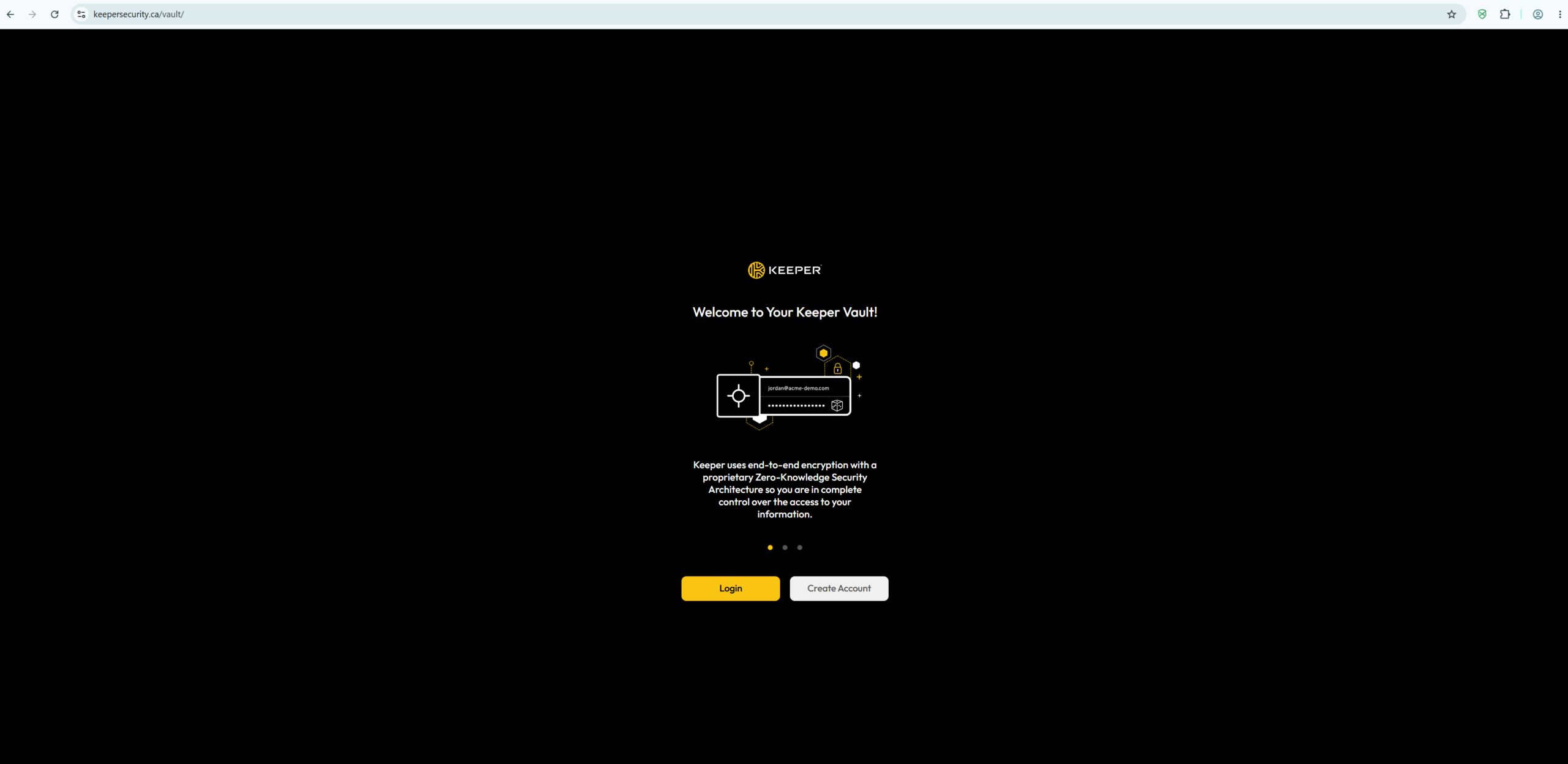
Keeper Password Manager has been configured for the organization to help users securely store, manage, and access work-related passwords. This webpage will provide step-by-step instructions for users to complete their first sign-in and begin using Keeper.
Note:
Please click the images on the right side of the page to enlarge them for a better view!
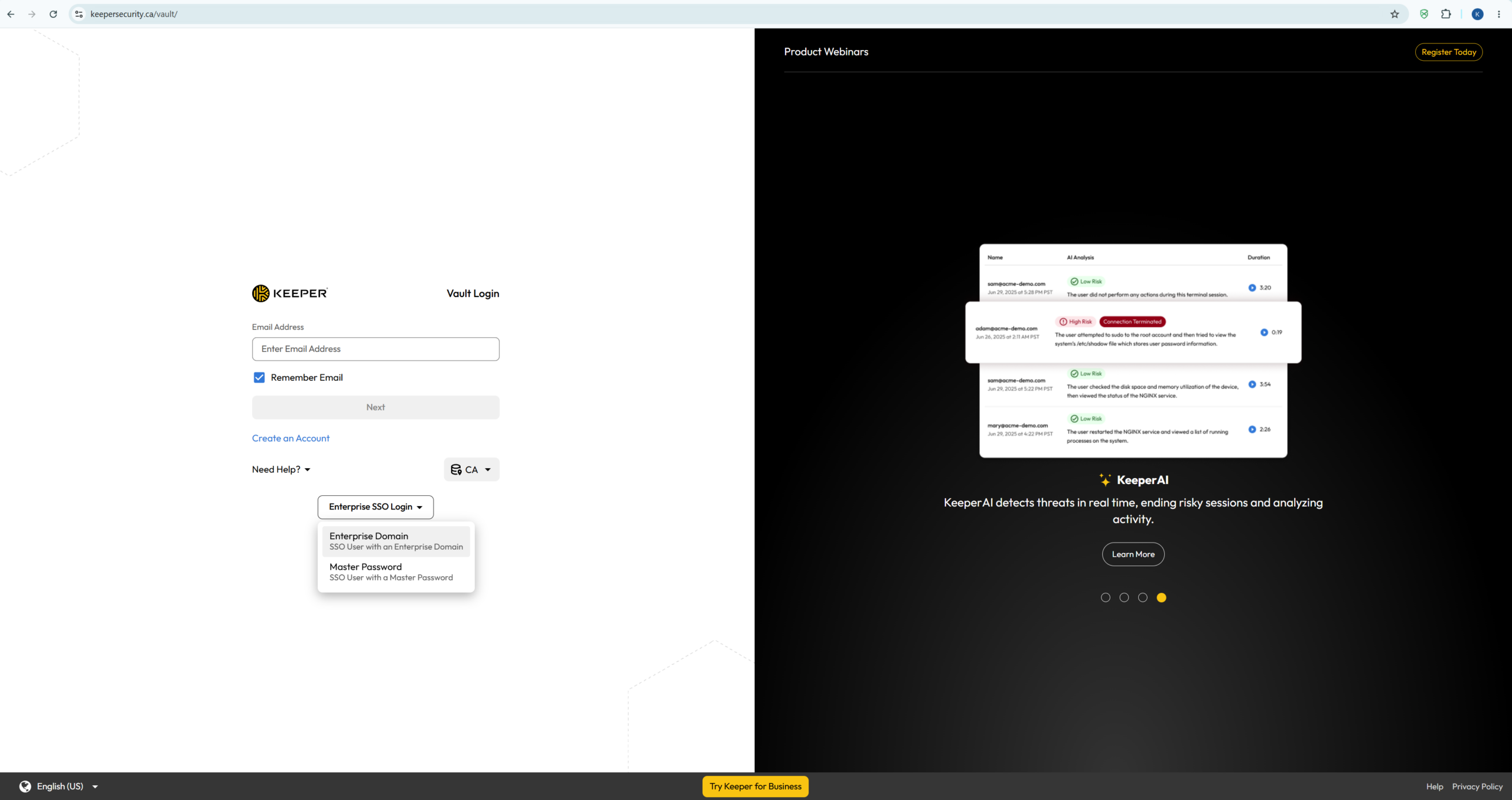
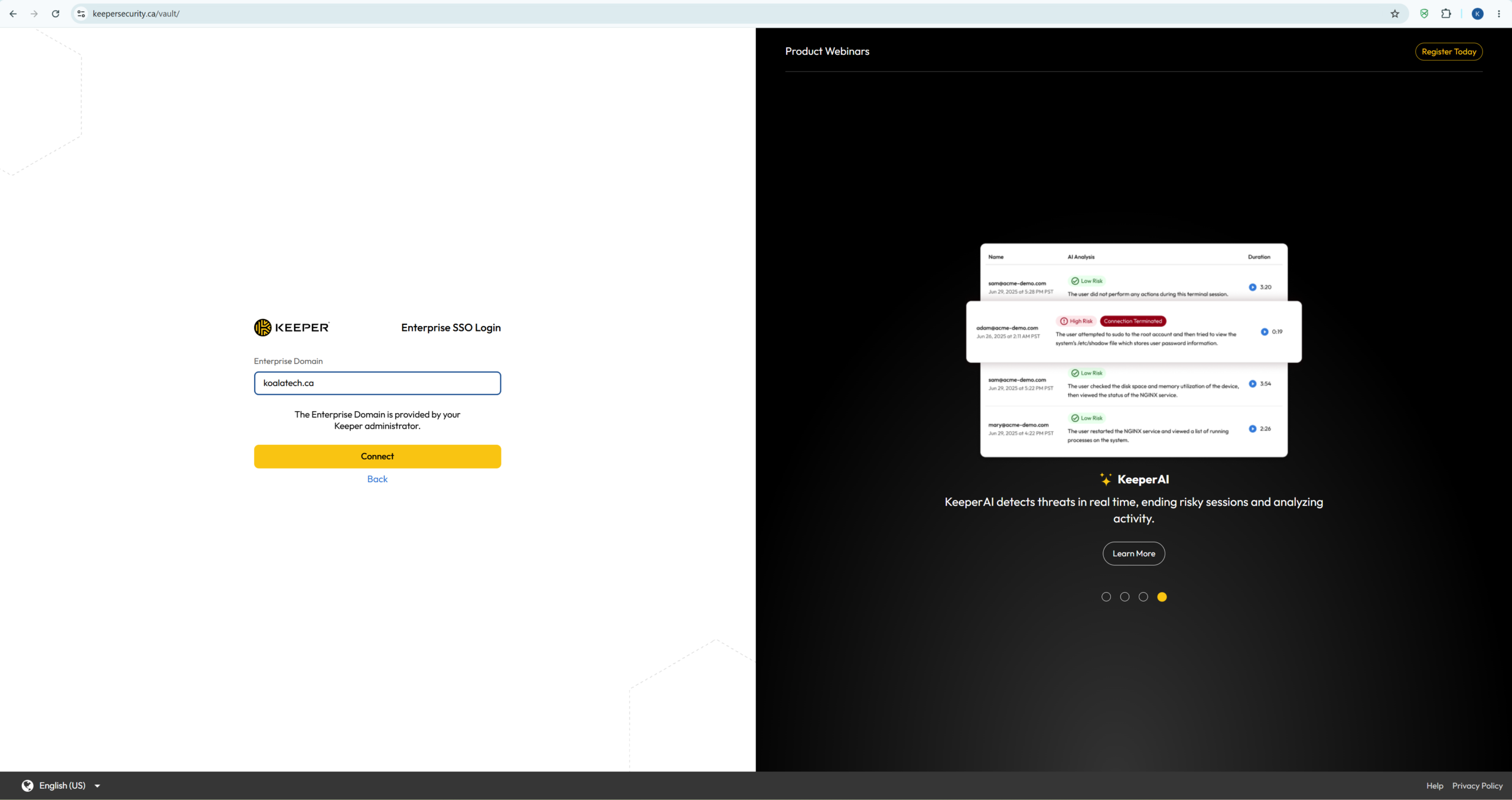
Step 3: When prompted, enter your company’s domain. For instance, koalatech.ca
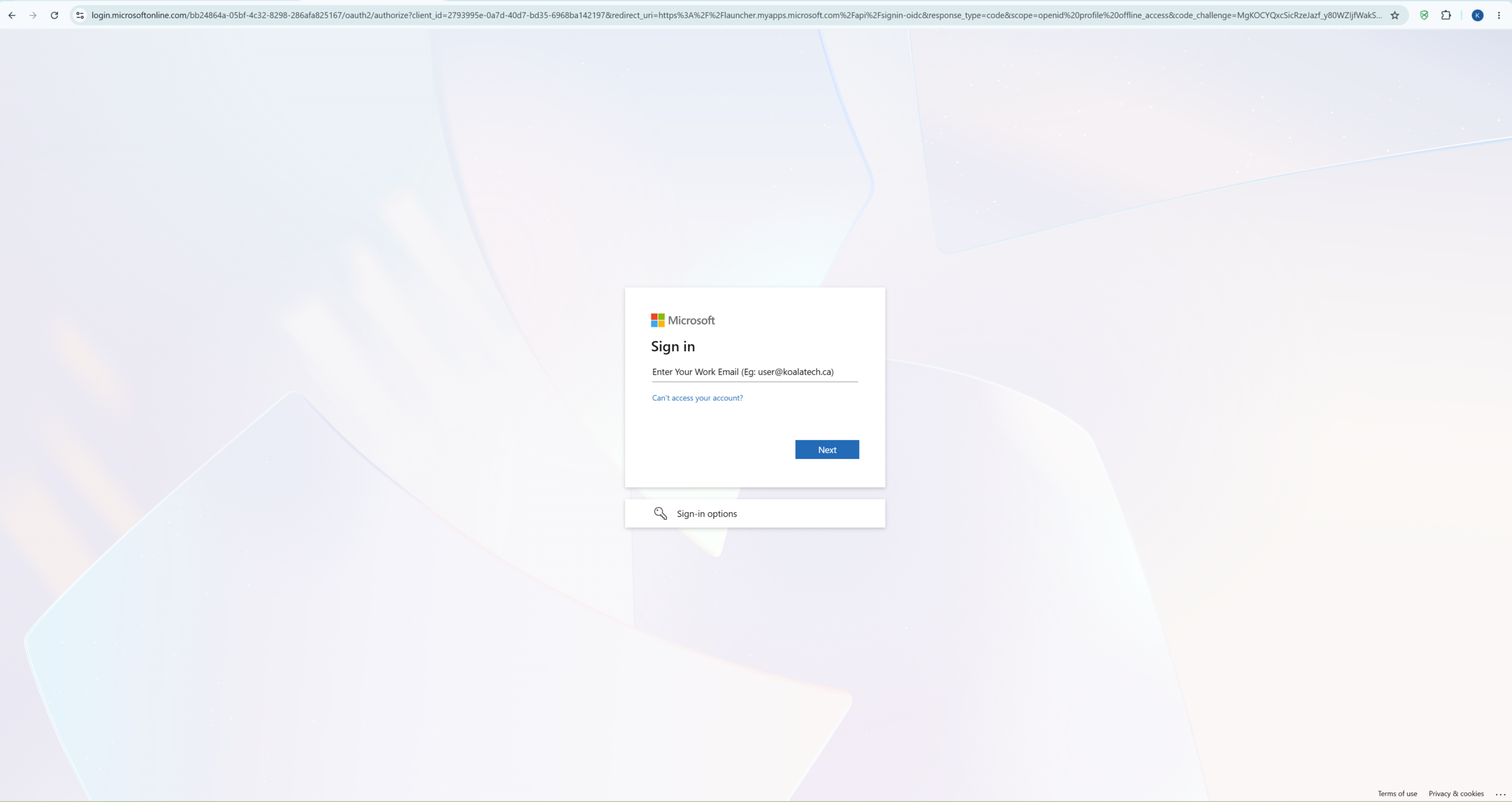
Step 4: A new tab will open and redirect you to Microsoft. Sign in using your Microsoft 365 work email address and password.
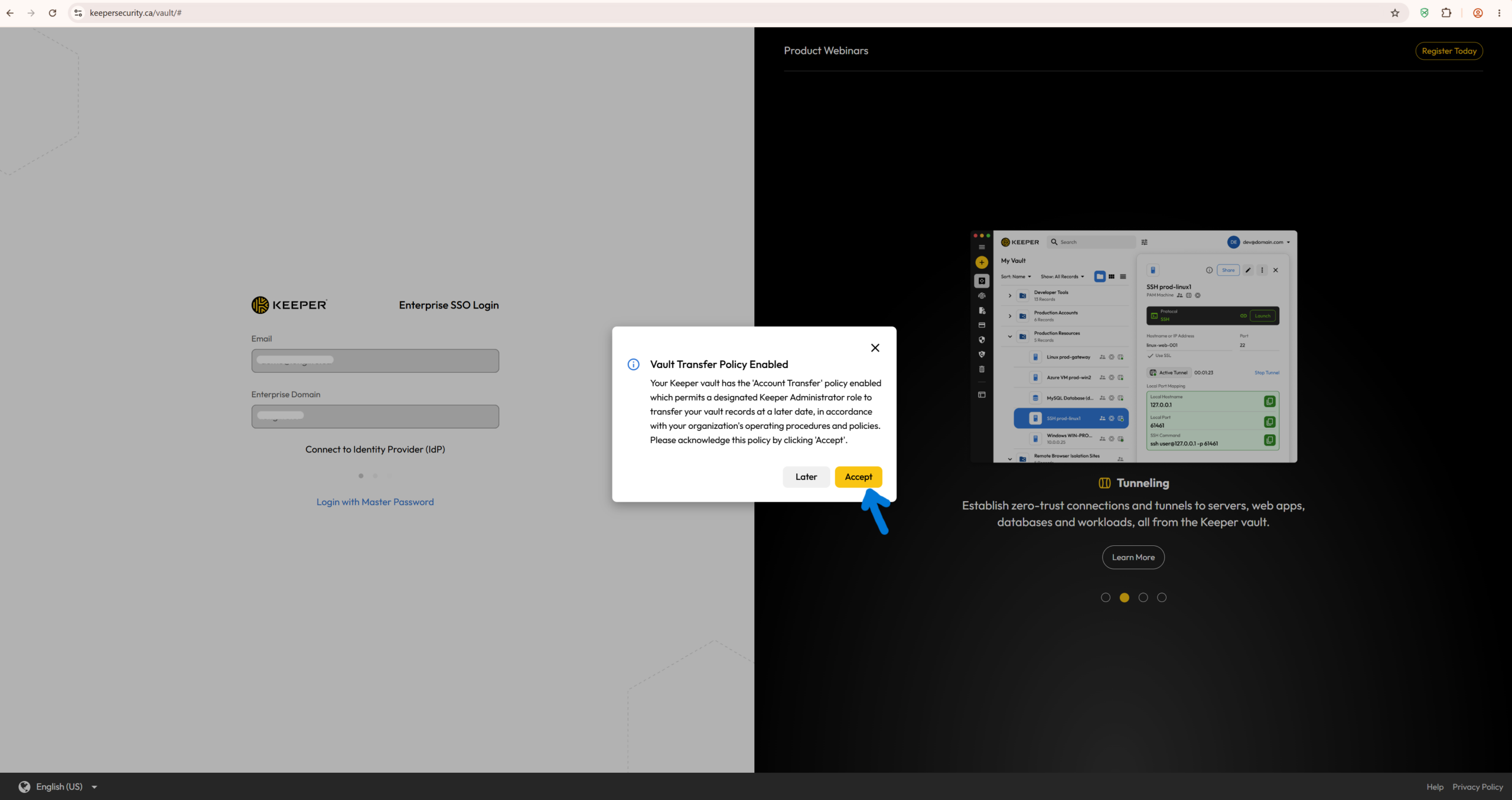
Step 5: If prompted, click Accept to allow the required sign-in permissions.
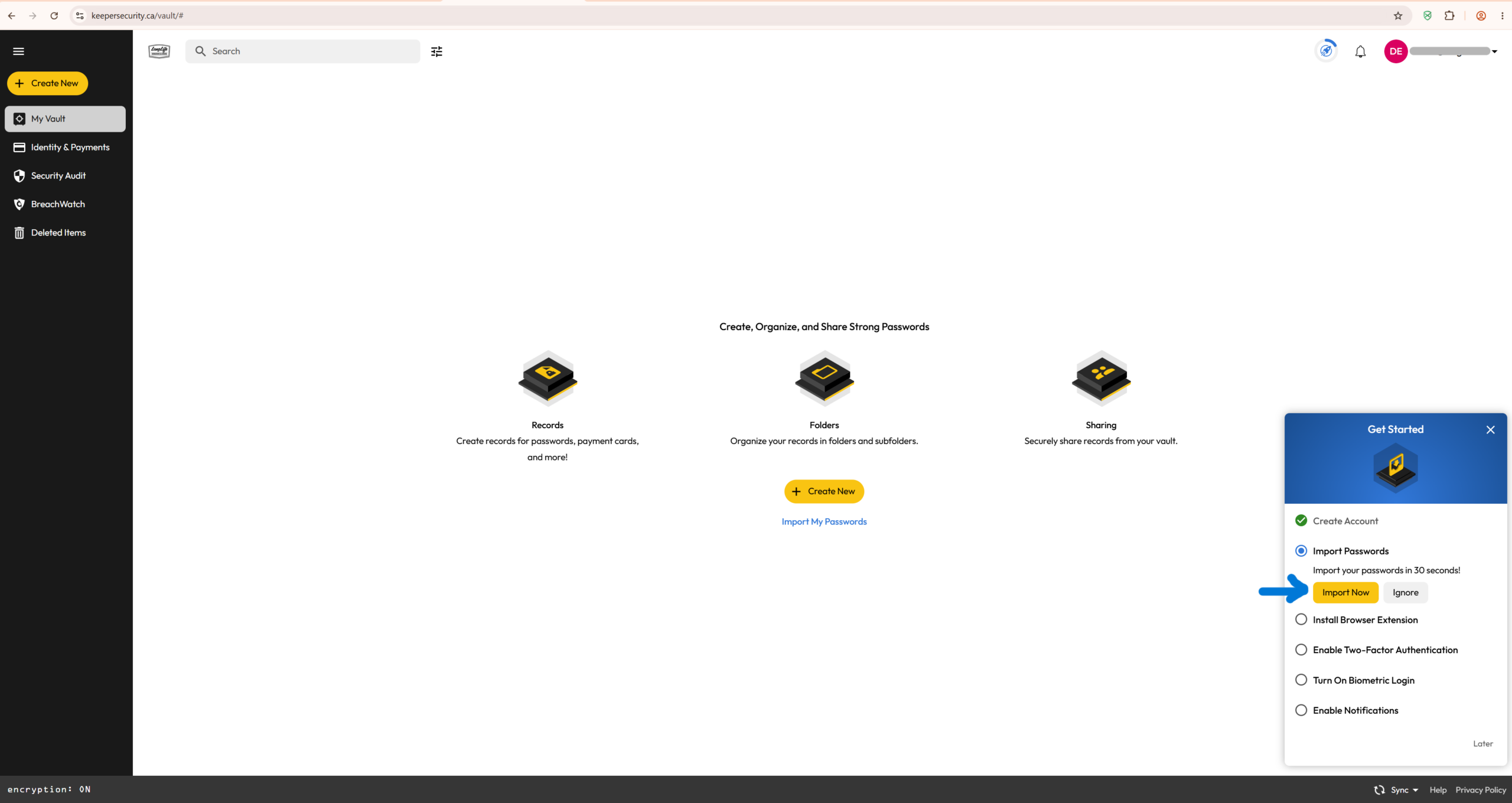
Step 6: Once you are signed into Keeper, go to Import Passwords and click Import Now.
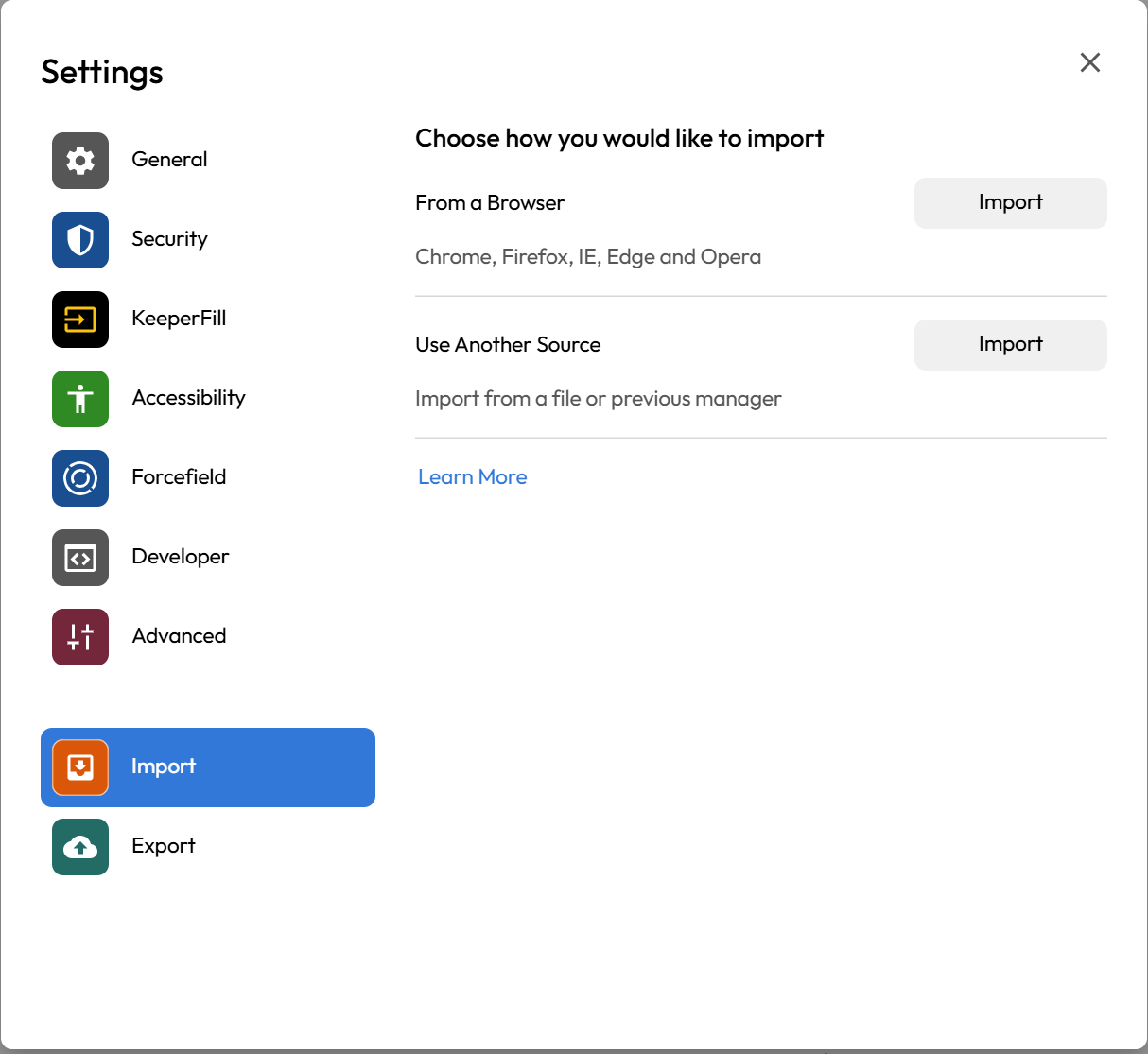
Step 7: Choose the appropriate import option and follow the on-screen prompts to import your saved passwords into Keeper.
If your passwords are saved in a browser such as Google Chrome or Microsoft Edge, click Import next to From a Browser.
If you currently use another password manager such as 1Password, LastPass, Dashlane, or Bitwarden, etc. click Import next to Use Another Source.
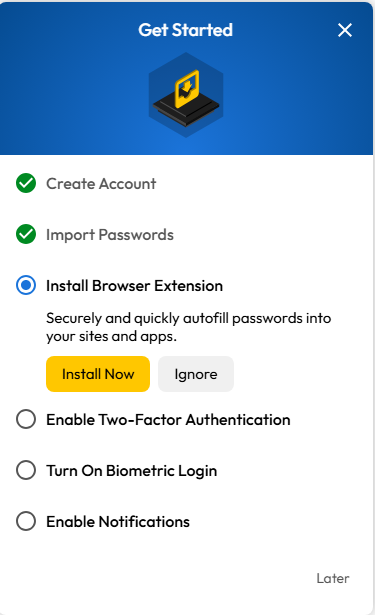
Step 7: Install the Keeper browser extension. After importing your passwords, Keeper may prompt you to install the browser extension. Click Install Now under Install Browser Extension and follow the on-screen prompts.
Step 8: Turn off browser password saving and autofill.
After Keeper is set up, we recommend turning off password saving and autofill in your browser. This helps avoid confusion where multiple tools try to save or autofill passwords at the same time.
For Google Chrome:
Open Chrome.
Click the three dots in the top-right corner.
Go to Settings.
Click Autofill and passwords.
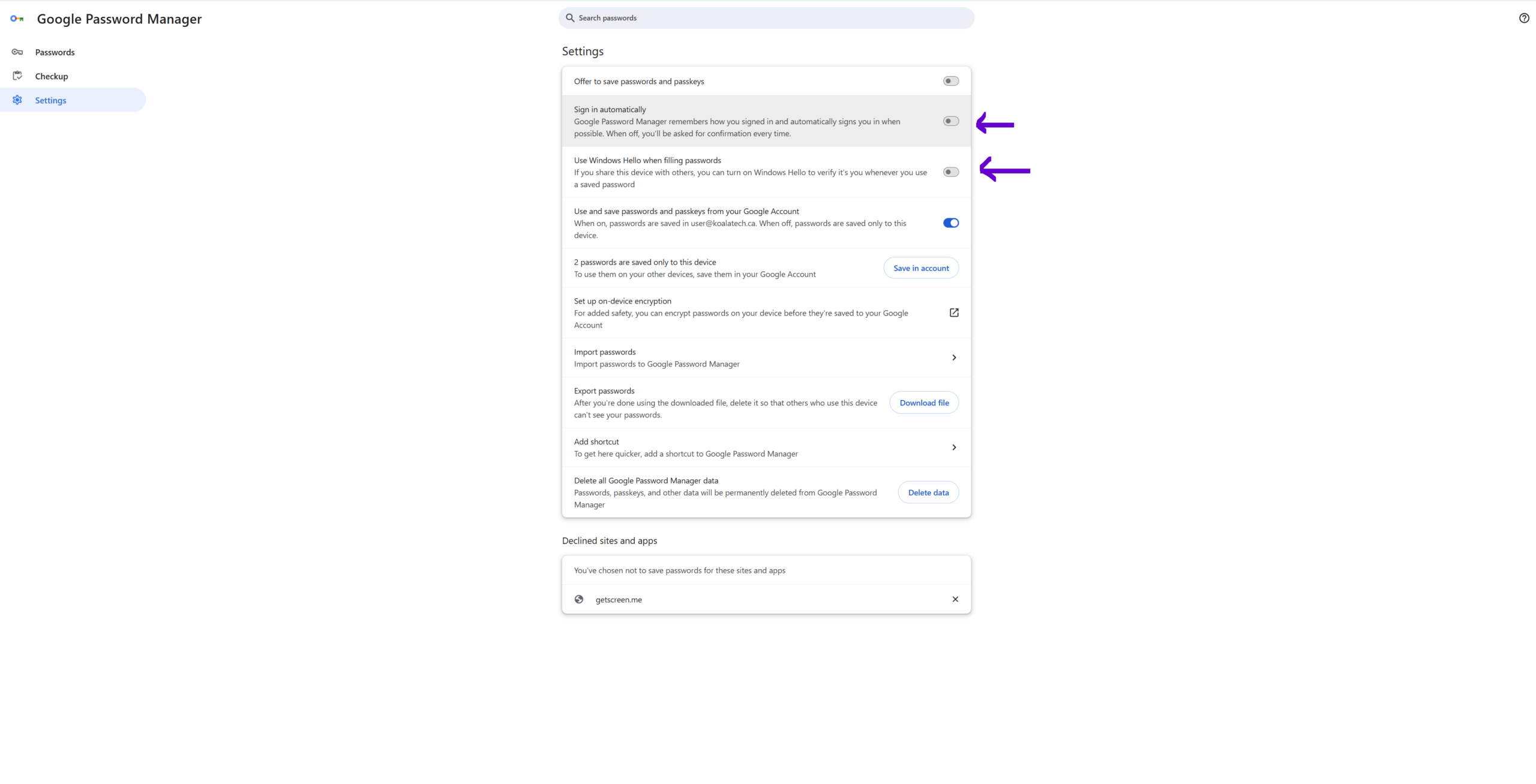
Open Google Password Manager.
Go to Settings.
Turn off Offer to save passwords.
Turn off Sign in automatically.
If you use Microsoft Edge, Firefox, Safari, or another browser, please review that browser’s password/autofill settings and turn off password saving or password autofill.
If you currently use another password manager, such as 1Password, LastPass, Dashlane, or Bitwarden, please also review that tool and disable its browser extension, password saving, or autofill features if you no longer plan to use it.
Going forward, Keeper should be used as the main place to save and autofill work-related passwords.
Once setup is complete, you can use Keeper to securely store and manage your passwords. For future access, go back to https://keepersecurity.ca/vault/ and click on Login, or use the Keeper browser extension from the top-right corner of your browser. If you do not see the Keeper icon, click the puzzle-shaped extensions icon and select Keeper.
When prompted, sign in with your Microsoft work account 🙂